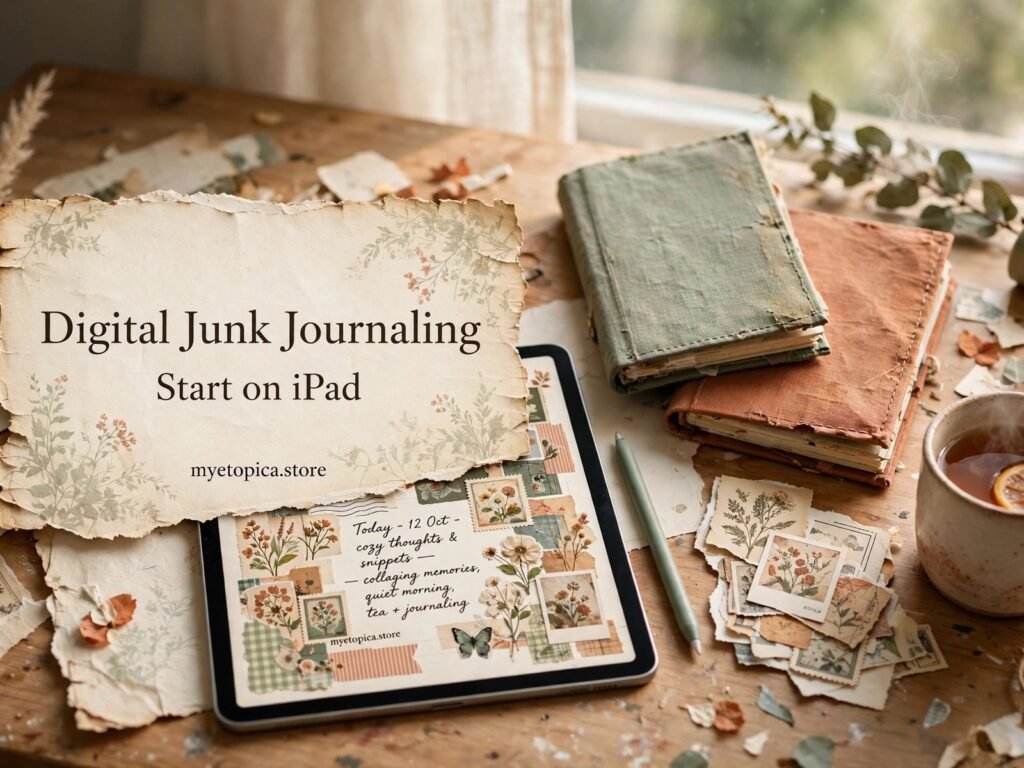
Paper junk journals are wonderful, the texture, the tea stains, the rustle of turning pages. But what if you travel constantly, live in a tiny space, or cannot face another glue-stick mess? A digital junk journal gives you the same layered, collage-style creative play on an iPad, with an undo button. This beginner’s guide covers what you need, how to choose an app, and how to build your first digital spreads.
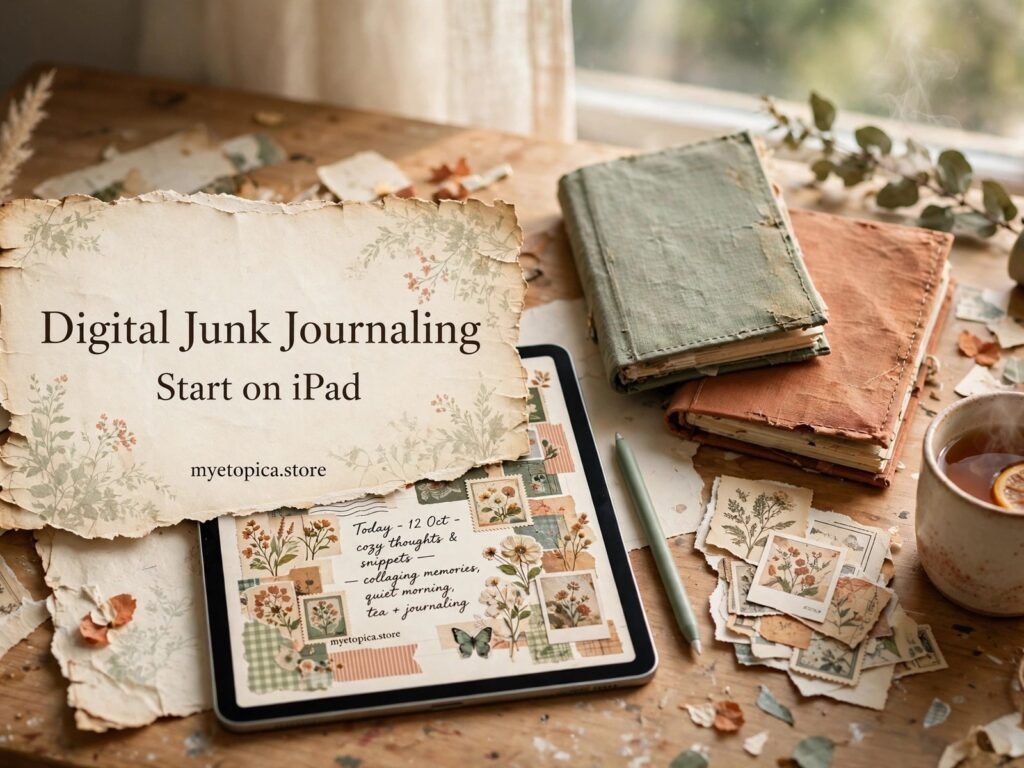
Digital junk journaling recreates the craft on a tablet: digital papers, stickers, washi tape, and handwriting, layered into notebook pages inside a note-taking app. You still collect, collage, and journal, with an Apple Pencil instead of scissors. Best of all, your entire craft room fits in your bag.
What Is a Digital Junk Journal? and Who Is It For?
A digital junk journal works like a paper one: themed pages, tucked-in tags, pockets, and personal writing. The difference is the medium. Instead of cutting paper, you import digital papers and PNG stickers; instead of gluing, you layer; instead of washi tape, you drag a digital strip onto the page.
It is ideal if you travel, live in a small space, are sensitive to mess or adhesive smells, or want to experiment freely, every change is reversible. It also complements paper journaling beautifully: many crafters keep a paper journal at home and a digital junk journal on the iPad for trips and quiet evenings on the sofa.
What You Need to Start on iPad
The setup is refreshingly short: an iPad, a stylus, and a note-taking app that supports handwriting and image imports.
- An iPad. Any recent model works. A larger screen (11 inches and up) gives more comfortable room for collage pages, but smaller iPads work fine too.
- A stylus. The Apple Pencil is the natural choice, pressure sensitivity and palm rejection make writing feel close to pen on paper. A budget third-party stylus covers basic writing and sticker placement.
- A note-taking app. Your journal itself. This guide focuses on GoodNotes and Noteful, both support handwriting, layers, PDF annotation, and image imports, everything digital journaling needs.
- Digital supplies. Digital papers, sticker kits, and washi PNGs, many sold as instant downloads, including printable kits from collections like our free vintage clipart roundup that import as images.
Coming from paper journaling? Our junk journal tools for beginners guide covers the physical side — the digital version of that kit lives entirely inside your iPad.
Choosing Your App: GoodNotes vs Noteful
Both apps were checked against current 2026 sources before writing. Features and pricing change, so confirm on the App Store listing before buying.
GoodNotes 6: the handwriting-first favorite
GoodNotes 6 is the category leader for handwriting on iPad, organized around digital notebooks and folders, one notebook per journal feels natural. It supports Apple Pencil handwriting, PDF annotation (handy for importing printable journal kits as PDFs), and searchable handwriting, so you can search your journaling later, something paper cannot do.
Two features stand out for crafters: an in-app marketplace for downloading templates, covers, and sticker packs directly in the app, and custom notebook covers with a wide range of paper templates, so your digital journal can look like a real bound book. Free to download with a free tier limited to a few notebooks; unlimited notebooks unlock via paid subscription or one-time purchase.
Noteful: the budget-friendly alternative
Noteful balances power with a clean, uncluttered interface at a lower cost. Its standout feature is layers: place decorations on separate layers, hide or show them independently, and rearrange them, essentially digital collage. Stack papers, stickers, and writing on different layers and shuffle until the page looks right.
It also offers flexible #tag organization, a lasso tool for moving and resizing anything, shape recognition, PDF markup, and iCloud sync across iPhone and iPad. Free to download, with an optional one-time pro upgrade unlocking unlimited notebooks, premium templates, and advanced lasso features.
What about Apple Notes?
Apple Notes is free on every iPad, supports Apple Pencil input, and syncs through iCloud. Fine for simple journaling, handwriting, sketches, dropped-in images, but far more basic than the apps above. A perfectly good zero-download sketchbook for trying digital junk journaling.
Setting Up Your First Digital Notebook
Setup takes about ten minutes. Create a new notebook, give it a custom cover, and choose a default paper, dotted or blank suits collage pages best. Noteful lets you mix multiple paper templates inside one notebook, so page one can be kraft-look and page two lined.
Name it like a real journal: “Autumn 2026 Journal” beats “Notebook 1.” Set up your structure now, by month, theme, or project, before pages pile up. Digital journals sprawl like craft supplies, so a little organization upfront pays off. See our guide to organizing junk journal supplies for tidy-stash thinking that applies digitally too.
Digital Papers, Stickers, and Washi: Stocking Your Stash
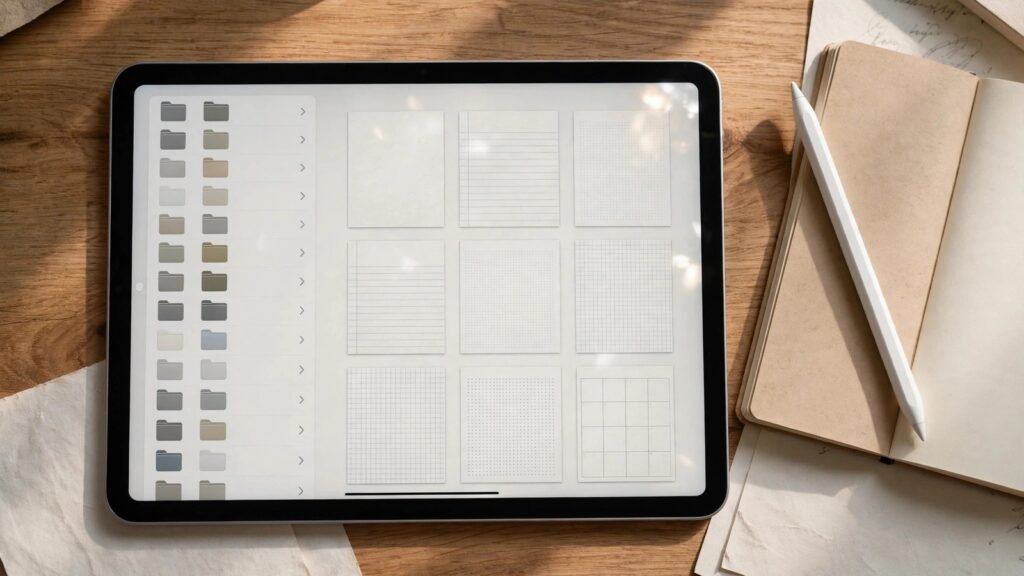
Digital supplies come in a few formats. Digital papers are full-page backgrounds, aged ledger, kraft, floral vintage, maps. Sticker kits are transparent-background PNGs: stamps, labels, butterflies, frames you place on the page. Digital washi arrives as PNG strips you stretch across elements.
Buy sticker kits as instant downloads, find freebies in app marketplaces, or make your own: scan physical ephemera and remove the background to create personal PNG stickers. Printable PDF journal kits can be imported directly into GoodNotes or Noteful and used as journal pages — one purchase, two formats. Remember: transparent PNGs are the sticker standard (no white box); JPEGs carry their rectangular background, so use them as full-page papers.
Building Your First Spread: Layering, Lasso, Resize, Rotate
The digital spread workflow mirrors paper journaling:
- Lay the background. Set your page template or import a digital paper as the base.
- Place large elements first. Add your main photo or ephemera PNG, then resize by dragging corners and rotate slightly for a casual, tucked-in look.
- Layer decorations. Add stickers, washi, and labels on top. In Noteful, keep decorations on their own layer so you can hide them while writing; in GoodNotes, use the lasso to nudge groups into place.
- Write. Handwrite with the pen tool or add a typed text box. Digital handwriting can be resized after the fact, write big, then shrink to fit.
- Refine. The magic step paper cannot do: lasso anything, move it, resize it, rotate it, delete it, undo it. Rearrange until the page sings.
The lasso tool is the single most important tool in digital junk journaling, your tweezers, repositionable glue, and eraser in one. Nothing is ever stuck; nothing is ever ruined.
Importing Etsy Printables and PNG Stickers
Supplies usually arrive as ZIPs of PNGs or PDFs. Unzip in the Files app, then import images to a page from your photo library or Files; import whole PDF kits as new notebooks or as pages inside your journal.
Workflow tip: keep a “Sticker Book” notebook where you paste every sticker PNG, organized by theme. Open it in split view beside your journal and copy elements across, the digital equivalent of an embellishment box that never overflows.
Want vintage-style digital supplies? The Etopica Etsy shop sells printable ephemera and clipart kits that import beautifully into iPad journaling apps as PNG stickers and digital papers.
Organizing Notebooks, Pages, and Backups
In GoodNotes, use nested folders, one per journal, subfolders per month or theme. In Noteful, lean on tags like #autumn or #travel and browse by tag later. Both sync through iCloud and export pages as PDFs.
Backups matter more digitally: a lost iPad without backup means a lost journal. Keep iCloud sync on and periodically export finished journals as PDFs to cloud storage. PDF exports also let you print favorite spreads, many journalers print theirs and tip them into paper journals, getting the best of both worlds.
Exporting, Sharing, and Printing Your Pages
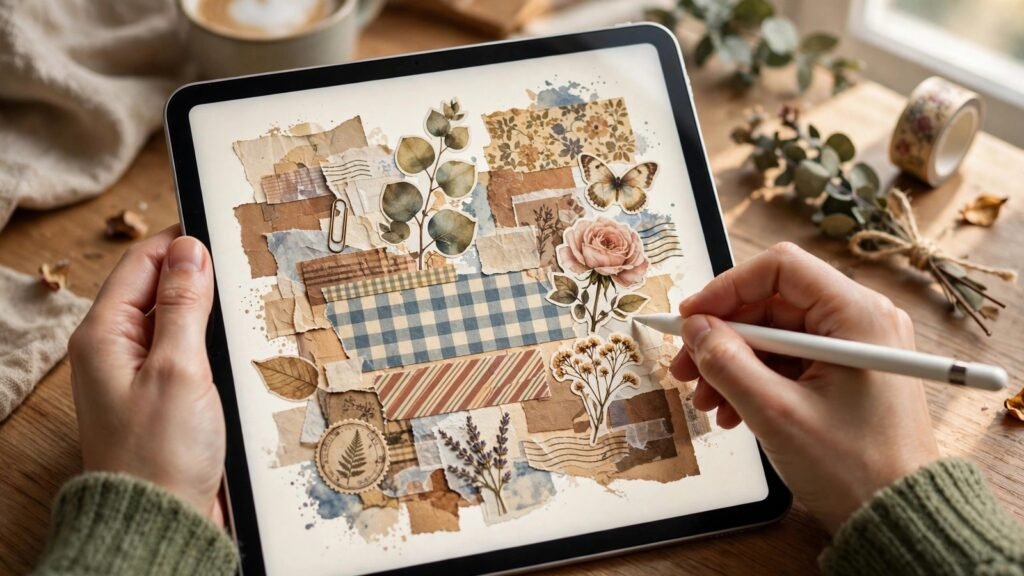
Export finished spreads as PDFs or images, perfect for Pinterest or Instagram, where digital journal spreads perform beautifully. Printed inserts work too: print a favorite digital page and glue it into your paper journal as a tip-in.
Consider a monthly routine: finish the month digitally, export the PDF, print it as a small booklet. Learning how to make a junk journal from scratch gives you the binding skills to turn printed pages into a real book.
Digital Complements Paper, It Does Not Replace It
The honest truth from crafters who do both: digital does not replace paper, and was never meant to. Paper gives texture, dimension, the smell of old books, and happy accidents. Digital gives portability, reversibility, and a craft room in a tote bag.
The sweet spot is both. Paper journal for slow weekends at the craft desk; digital junk journal on the iPad for trips, commutes, and ten quiet minutes before sleep. Scan favorite paper ephemera into your digital stash, print favorite digital spreads into your paper journal, and let the two talk to each other. The Apple Pencil’s pressure sensitivity is what makes digital handwriting feel natural, and makers like GoodNotes keep refining the experience, check the current feature list when you download.
Key Takeaways
- A digital junk journal recreates paper junk journaling on an iPad: digital papers, transparent PNG stickers, and handwriting in a note-taking app.
- You need an iPad, a stylus like the Apple Pencil, and an app, GoodNotes 6 for handwriting-first organization, Noteful as a budget-friendly layered alternative.
- Stock digital papers, sticker kits (transparent PNGs), and digital washi; import Etsy printables and PDFs directly.
- Master the lasso tool: select, move, resize, rotate anything, nothing is ever stuck or ruined.
- Organize with folders or tags, keep iCloud sync on, and export finished journals as PDFs for backup, sharing, and printing.
- Digital complements paper, scan physical ephemera in, print favorite spreads out, and enjoy both.
What is a digital junk journal?
A junk journal made on a tablet instead of with paper and glue. You layer digital papers, transparent PNG stickers, digital washi, and handwriting inside an app like GoodNotes or Noteful to create collage-style pages.
Do I need an Apple Pencil for digital junk journaling?
It makes handwriting feel natural thanks to pressure sensitivity and palm rejection, worth it if you journal often. For placing stickers and typing, your finger or any basic stylus works fine.
Is GoodNotes or Noteful better for junk journaling?
GoodNotes 6 leads for handwriting-first organization, PDF annotation, searchable handwriting, and an in-app sticker marketplace. Noteful is the budget-friendly alternative with a standout layers system, tagging, and lasso tool, excellent for collage pages at lower cost.
Where do I get digital stickers and papers?
Buy digital journal sticker kits as instant downloads on Etsy, find freebies in app marketplaces, or scan your own ephemera. Printable PDF journal kits import directly into GoodNotes or Noteful as pages.
Can I print my digital journal pages?
Yes. Both apps export pages or whole notebooks as PDFs and images. Print favorites to tip into a paper journal, share on Pinterest or Instagram, or print a whole month as a booklet.
Will digital journaling replace my paper junk journal?
For most crafters, no — it complements it. Paper offers texture and happy accidents; digital offers portability and an undo button. Many keep both: paper at home, digital on the iPad for travel.
Our Etsy shop is full of adorable printable cliparts — birthday boys & girls, sweet animals, summer and spring themes — designed to print at home and layer straight into your journal.
Browse the Clipart Shop ↗
Leave a Reply